

Before we start our discussion about how we can install and use R, let’s discuss something about R itself. Unlike other programming languages, such as C and Java, R was created by statisticians. More specifically, R was created by Ross Ihaka and Robert Gentleman as a free and open-source language for statistical computing and data analysis, making it accessible to a wider audience of researchers and analysts. It was a re-implementation of the S programming language with some modifications and improvements. The main idea behind R is its specialization in statistical analysis and data visualization, making it an excellent choice for statisticians and data analysts. Other programming languages, such as Python, are more general-purpose languages with strong focus on versatility and integration, making them suitable for a wide range of applications.
R is one of the best options for data scientists and data analysts because it is free and can run on most platforms (Windows, Mac, etc.). Furthermore, the large and active R community contributes to the development of the language, making collaboration among its members easily feasible. Because of this, anyone can create his or her own R package and make it available for other users. Lastly, R enables us to easily save and share our code, often referred to as a *script*. A script serves as a comprehensive record of the analysis that we have conducted, offering a crucial feature for promoting reproducible research and work. One important note is that although R is known for its relative ease of learning, it deviates significantly from the conventional practices of computer science.
Now that we got a first impression about what R is, let’s see how we can start using it. Firstly, we need to install R in our local computer, a task that is very easy and brief. We can do so by clicking the link below and find the latest version in the official website. During the installation process, it is advisable to click all the default options:
https://cran.r-project.org/bin/windows/base/
After the installation is complete, we can use R immediately. When we open R, we can see the console that looks like this:
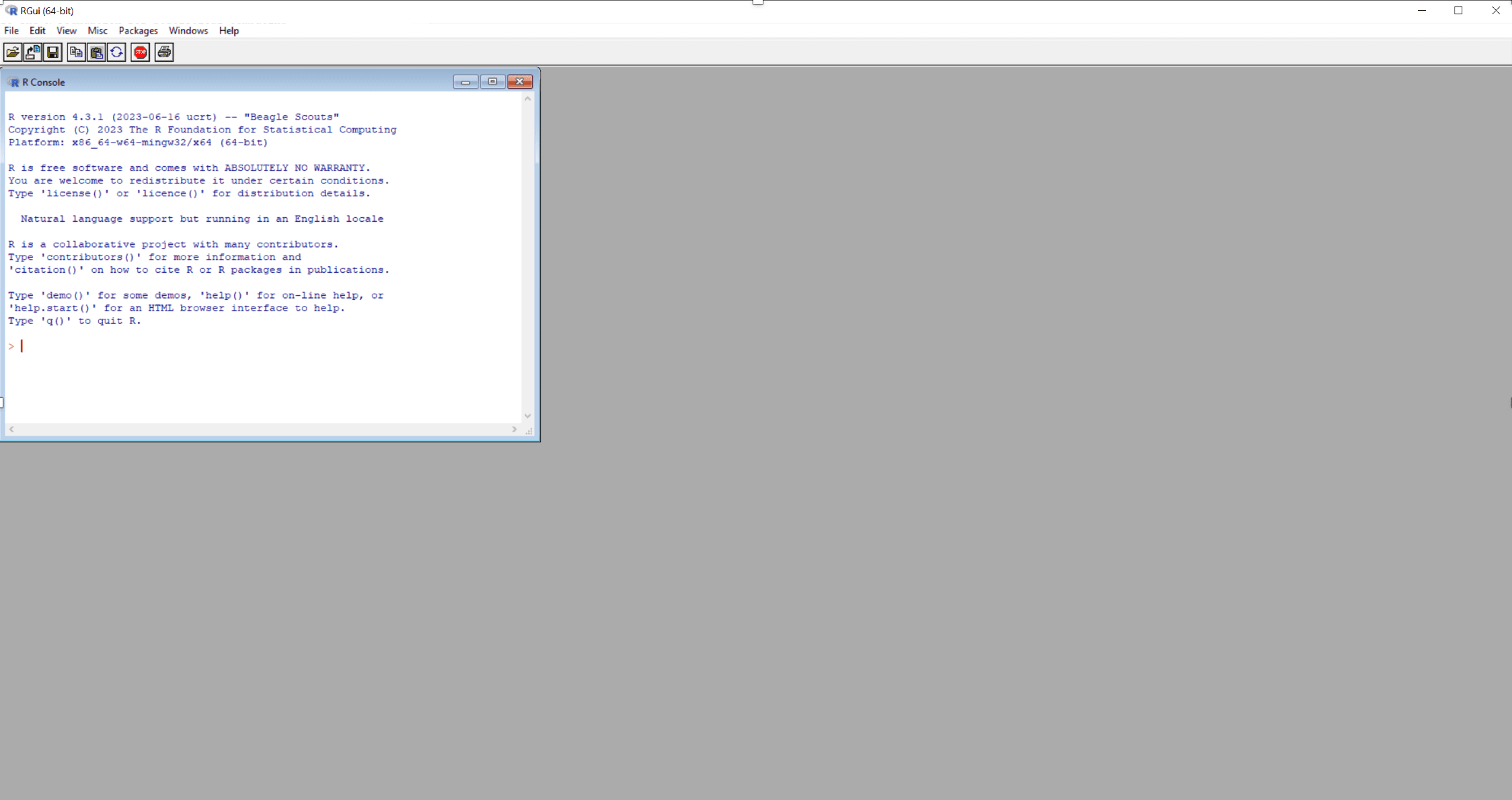
On the console, we can type commands and tap Enter to execute those commands. For instance, we can type “2+2” or “3 + 1” (leaving spaces among the characters does not make any difference) and then tap Enter to see that the final result in both cases is “4”:
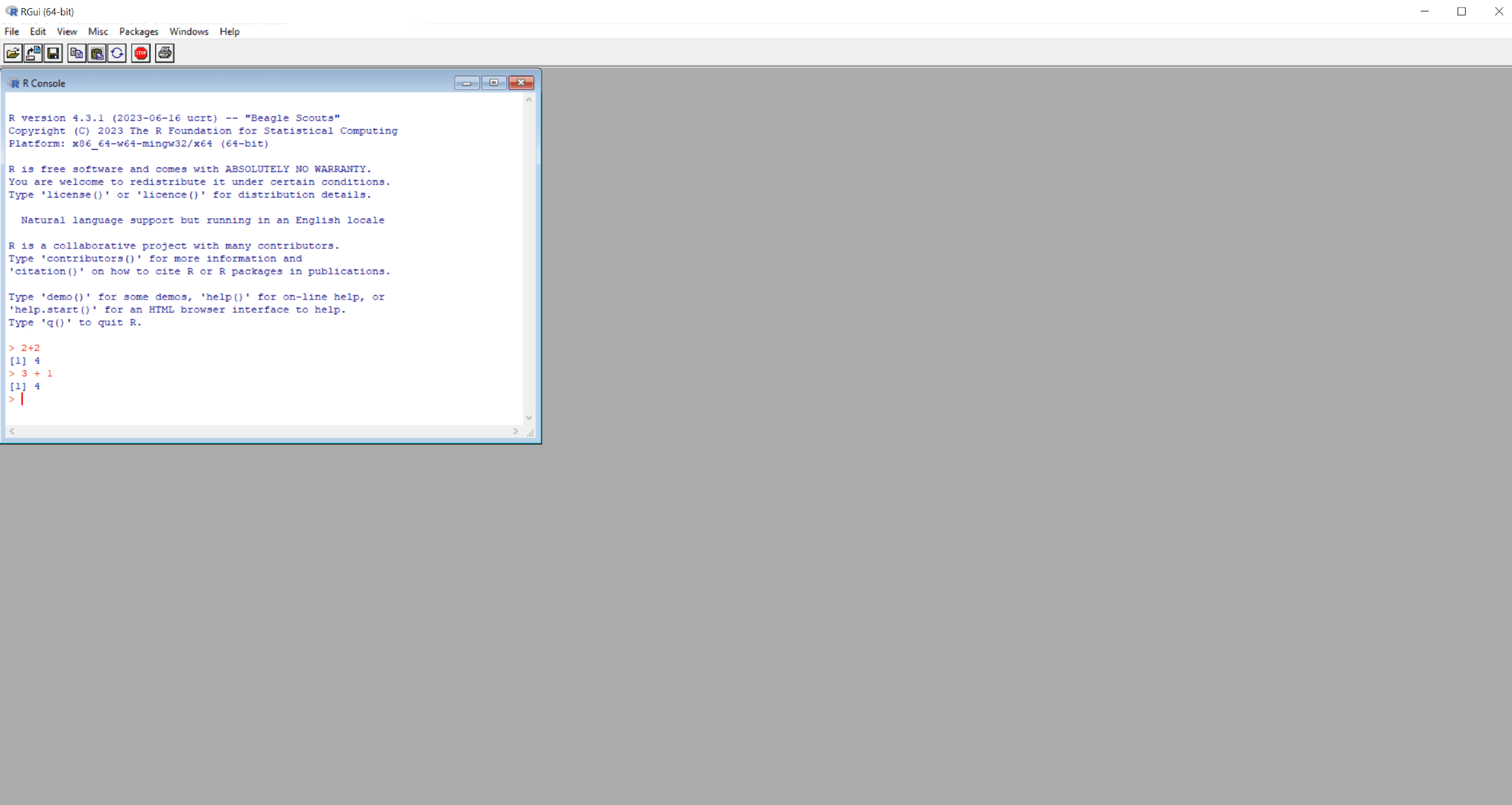
We see that each time we tap Enter, the written code on the corresponding line runs. Of course, we will use R for much more complex tasks than simply as a calculator. Although we could start working with the R console, it is much more convenient to work with RStudio.